
Excel is great. It’s simple to use, flexible, and familiar (especially to us bean counters). But can a spreadsheet work as a bullet journal?
Sure it can! In fact, it’s the thing that kept me sane at work for most of my career.
I love traditional pen-and-paper bullet journal notebooks. There’s something grounding and magical about putting pen to paper.
But it’s not always practical to carry our notebooks around. It takes time and presence — which is the point — but when our days start to feel chaotic, creating that moment to sit and mindfully work in our journals can compound our stress more than soothing it.
If you’re in a phase of life where a digital solution simply feels more practical (and spreadsheets are your thing), read on!
In case you’re curious → How a Digital Bullet Journal Kept Me Sane At Work (coming soon!)
Download what is essentially the Excel BuJo I used for years → Digital Bullet Journal | Free Download
Why use Excel as a bullet journal?
Bullet journaling started as something creative I could do that also felt productive, but wound up being my default way for logging, tracking, and organizing my life.
Naturally, I wanted to bring those bullet journaling benefits to my demanding day job to feel more on top of it all, and bring a sense of clarity and direction to my work. The problem was that carrying around a notebook with client names and projects in it would be a breach of security and confidentiality.
Instead, I started using the tool that many of us were already using to track our clients and projects: an Excel spreadsheet on my office desktop. The only difference? I started using it like a bullet journal, in conjunction with my Outlook calendar.
It worked wonderfully for me, and I continued to use it for the rest of my career.
A digital bullet journal makes sense when you want:
- Privacy
- Accessibility
- Efficiency
- Ability to search your bullet journal
- Alignment with your existing digital systems (e.g. calendars)
When it comes to staying organized with minimal friction, Excel just happens to be one of the most available and widely used applications, so it makes a great (and very minimal) start to digital bullet journaling.
Here’s a general discussion on digital bullet journaling and options beyond the spreadsheet version: Digital Bullet Journaling for Busy People: Simple Ways to Start
How the Excel Digital Bullet Journal works
This system is minimal and flexible enough that you can probably make it work in any number of ways, but here I’ll show you how I use mine, using this Excel Bullet Journal Template as an example (feel free to download and follow along).
Here’s what the book looks like. In my version, I’ve included a “Start Here!” section with tips for usage.
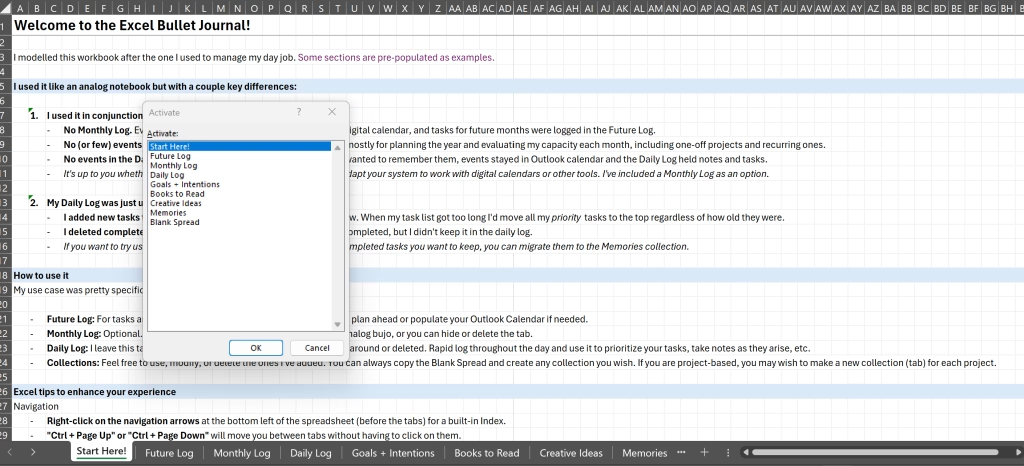
Basic elements of a bullet journal in the Excel universe
If you’re already familiar with the bones of a paper bullet journal, they translate pretty nicley into Excel language:
- Notebook → “Workbook”
- Index → “Activate” menu
- Spread → “Sheet”
- Collection → “Tab”
There are a few Excel tricks that can help make navigation feel smoother as you get used to them.
Right click on the < > at the bottom-left corner of the workbook to view what is essentially an Index of all your collections
Archive a collection by right-clicking on a tab and selecting “hide”. To view hidden tabs, right-click on any tab and choose “unhide.” You’ll be shown a list of your hidden tabs.
To skip the click and navigate your tabs, use Ctrl + Page Up and Ctrl + Page Down
Here’s how I use the main spreads.
Future Log and Monthly Log
You could absolutely treat the Future Log and Monthly Log just like you do in your physical bullet journal notebook.
If you’re new to bullet journaling, take a look at the examples in this post: How to Start a Bullet Journal (Simple Guide + Rapid Logging Explained).
But if you’re looking to use Excel as a bullet journal, you probably have a packed calendar and want this system to be as efficient as possible.
The solution: Your digital calendar is your Future Log and Monthly Log.
How many of the features on there you’d like to use is up to you. Personally, all of my events went into Outlook calendar. I never used the Outlook calendar task feature, though — those went into my Future Log or Daily Log in Excel.
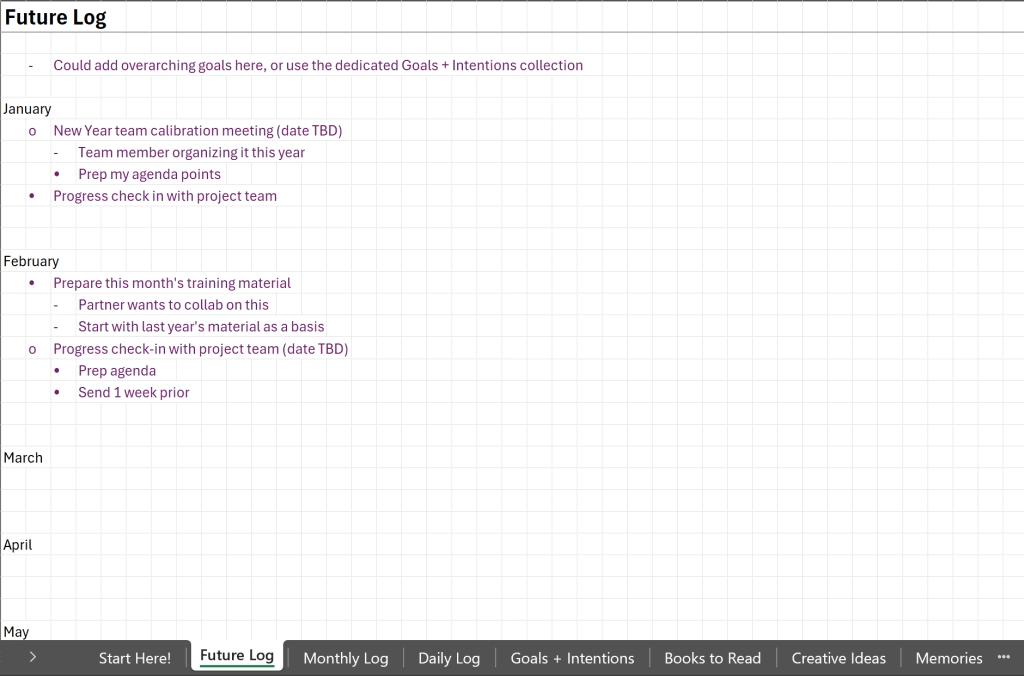
I did not use a monthly log at all, but it’s included in the template in case you’d like one.
I did use my Future Log a lot. Here’s what I put in there:
- Recurring client work based on the month work should start. If they don’t have their own Collection, I note deadlines and any relevant information right there in the future log.
- Tasks that need to be done in specific months.
- Events only as reminders that I will need to set up a meeting on Teams or Outlook and/or prepare for them, or if helpful to see as part of my bird’s eye view of the year.
- One-off projects when I know which month they’ll occur.
I’m speaking from my accounting life, so I also used signifiers to denote what kind of work (personal tax, business valuations, notice to reader, etc.) You could stick to the basic signifiers that denote priority, inspiration, and so on.
This Future Log helped me evaluate my capacity, which meant I could strategically place projects in months when work was lighter and quickly determine whether I could take on new work (and when).
Daily Log
This is the tab I have open all the time — it’s where my rapid logging goes.
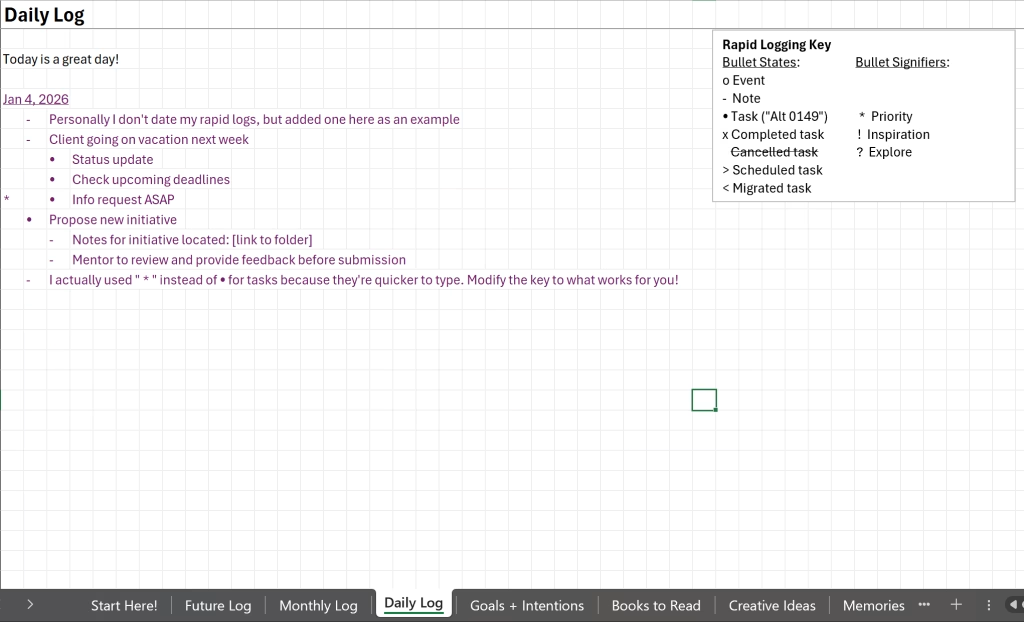
In the example, I dated the daily log. You could do this and just continually scroll down the sheet, but for me, I didn’t find the date mattered too much. I just continually rapid logged onto this page.
At the end of the day (or when I had time), I’d do the typical bullet journal scheduling and migration, which cleans up the Daily Log pretty quickly.
More on this in the workflow below.
When my list started to get unruly, rather than just relying on priority signifiers, I’d actually reorganize tasks so that they were listed in order of priority, and just start working from the top of the list.
Collections
Collections can be lists (books to read), a collection of positive feedback to brighten your day, goals you’re working toward, project notes, a resources page… Whatever makes sense for you to keep together and have available.
New collection? New tab!
A workflow that works with a digital Excel bullet journal
You can absolutely use a typical Bullet Journal workflow with an Excel Bullet Journal. I’ve shared one here: A Simple Bullet Journal Routine That Works (For Busy People)
But as a refresher, the workflow usually includes:
Morning → quick check-in
Open the Daily Log and rapid log anything on your mind. Review your priorities for today, and pick the first thing you’ll start with.
To get a bit more intentional with it, this routine is great for gaining traction on a busy morning: A Grounding, Bullet Journal-Inspired 5 Minute Reset
During the day → task completion and rapid logging
I do cross off completed tasks with “x”, so that I can see what I’ve done all day. It’s very satisfying!
Apart from this, I rapid log throughout the day. I’ll rapid log notes if someone pops into my office to talk about a project, tasks that I think of as I go during the day, and so on. The Daily Log is very much alive.
Evenings → review and schedule or migrate
Or perhaps I should say “end of day”. This is where I:
- Review the daily log.
- Delete completed tasks to keep the Daily Log clean.
- Migrate notes to their relevant Collection or to the Future Log.
- Anything that needs to turn into an event goes in the Outlook calendar.
- Evaluate remaining list for priority tasks and signify what I will focus on tomororw.
Finally feeling on top of things
This digital bullet journal system did two important things for me. First, it took all of the mental notes, to-do’s, and context-switches from a day and gave me a place where I could finally set them down. Second, it helped contextualize all of the work I was doing into the greater flow of my work year and trajectory of my career.
Further reading: How I Used a Digital Bullet Journal to Manage Overwhelm at Work
Now, not everyone will use this for work — this can absolutely work as a personal bullet journal, too. I prefer to use a suite of apps for personal digital bullet journaling because I like the accessibility from my phone (more on this to come — stay tuned!).
But spreadsheets are a great solution if you have a computer-based desk job.
As always, the goal here is not perfection — it’s to feel out the system that works best for your workflow.
You can download the free template here to get started: Excel Bullet Journal Template
Happy journaling!
Want to go further?
If you’re just starting to explore digital bullet journaling → Digital Bullet Journaling for Busy People: Simple Ways to Start
If you’re ready to transition to digital from analog → Switching to a Digital Bullet Journal (Without Losing Meaning and Mindfulness) (coming soon!)
Or head back to the guide → The Busy Creative’s Guide to Bullet Journaling (Start Here!)